Stepping into the world of smart home technology often begins with lighting. And when it comes to truly transforming your home’s ambiance and convenience, Philips Hue Smart Switches are game-changers. Forget fumbling for your phone or yelling at a voice assistant; these intuitive devices put effortless control right at your fingertips, making your smart lighting experience smoother and more accessible for everyone in your household.
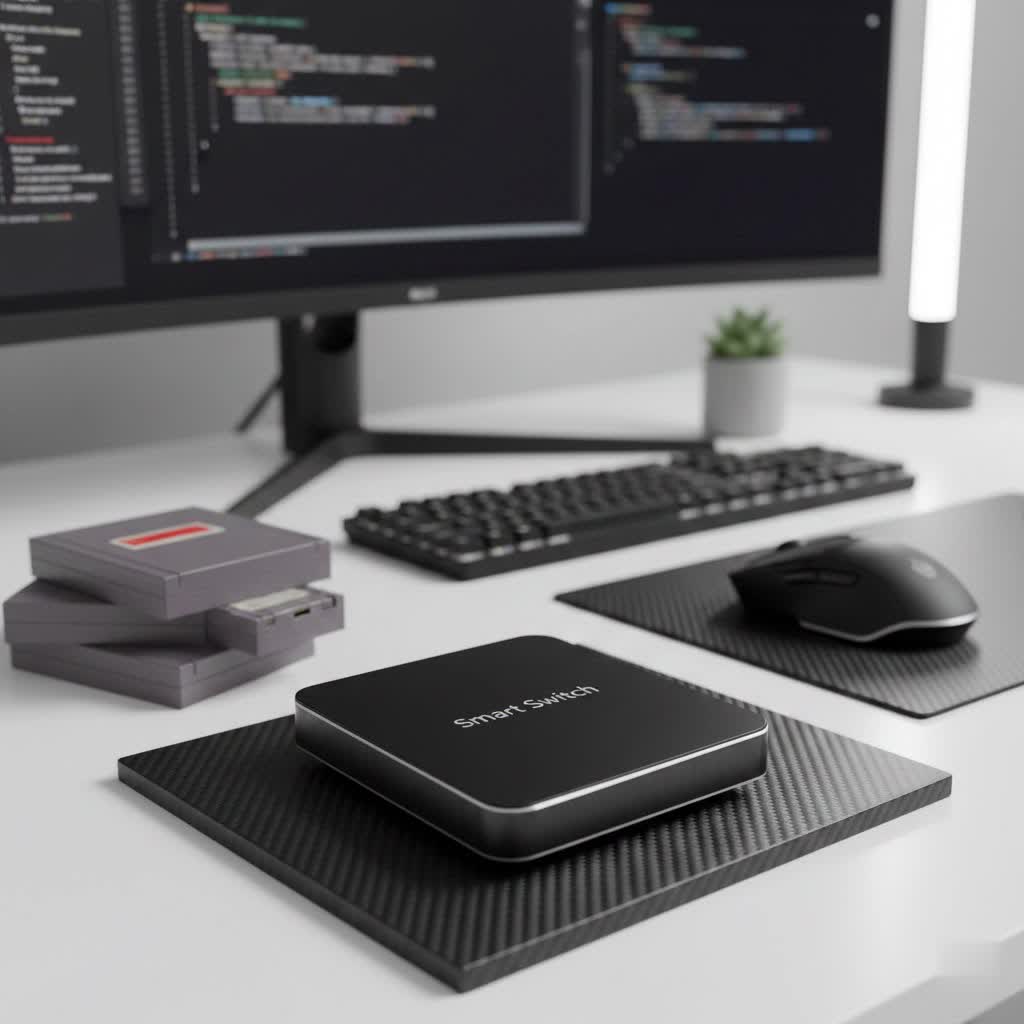
But what exactly are Philips Hue smart switches, and why should they be an essential part of your smart home ecosystem? As a smart home automation specialist with over a decade of hands-on experience and a content creator for qmsit.com, I’ve seen firsthand how these clever gadgets bridge the gap between traditional and modern lighting control. They don’t just turn lights on and off; they unlock the full potential of your Philips Hue bulbs, letting you dim, brighten, change scenes, and even control entire rooms with a simple press.
Why Embrace Philips Hue Smart Switches? More Than Just On/Off
Integrating Philips Hue smart switches into your home offers a wealth of benefits that go far beyond basic light control. They are designed to enhance your daily life, making smart lighting more intuitive and enjoyable.
- Convenience and Accessibility: Imagine walking into a room and instantly setting the perfect mood with a single button press. Philips Hue switches provide instant, tactile control without needing your smartphone or voice commands. This is especially helpful for guests, children, or anyone who prefers a physical interaction over digital interfaces.
- Preserving Smart Bulb Functionality: One of the biggest challenges with smart bulbs is that turning them off at a traditional wall switch cuts power, rendering their “smart” features useless. Philips Hue switches, particularly the Wall Switch Module, ensure your smart bulbs always remain powered, allowing you to maintain app control, voice commands, and automation schedules even when someone uses the physical switch.
- Seamless Ecosystem Integration: Philips Hue is renowned for its robust and reliable ecosystem. Their smart switches integrate flawlessly, working with your Hue Bridge to orchestrate complex lighting scenes and automations across your entire home. They also often offer compatibility with major smart home platforms like Apple HomeKit, Google Assistant, and Amazon Alexa, providing a unified control experience.
- Enhanced Customization and Control: From cycling through your favorite scenes to fine-tuning brightness levels, these switches offer deep customization. You can program buttons to perform different actions based on a short press, long press, or even the time of day, giving you unparalleled control over your lighting environment.
Navigating the Philips Hue Smart Switch Family: Which One is Right for You?
Philips Hue offers a range of smart switches, each designed to meet different needs and preferences. Understanding the unique features of each can help you choose the perfect fit for your smart home.
The Philips Hue Dimmer Switch: The Versatile Classic
|
Our Picks for the Best Smart Switch in 2026
As an Amazon Associate I earn from qualifying purchases.
|
||
| Num | Product | Action |
|---|---|---|
| 1 | Kasa Smart Light Switch HS200P3, Single Pole, Needs Neutral Wire, 2.4GHz Wi-Fi Light Switch Compatible with Alexa and Google Home, UL Certified, No Hub Required, 3 Count -Pack of 1 , White |

|
| 2 | Lutron Caseta 3 Way Smart Dimmer Light Switch Kit, Includes Pico Remote, Bracket, and LED Dimmer Switch, No Neutral Required, P-PKG1WB-WH |
|
| 3 | TREATLIFE Smart Light Switch Single Pole Works with Alexa, Google Home and SmartThings, 2.4GHz WiFi Timer Smart Switch, Neutral Wire Required, No Hub Required, FCC Listed, 4 Pack |
|
| 4 | Leviton Decora Smart Switch, Wi-Fi 2nd Gen, Neutral Wire Required, Works with Matter, Alexa, Google Assistant, Apple Home/Siri & Wired or Wirefree 3-Way, D215S-1RW, White |
|
| 5 | HALO Pure Smart Wi-Fi Dimmer Switch for Traditional Non-Smart Lighting, Connected by WiZ Pro, Hardwired 120V - SWW-DIM-WH |
|
| 6 | Kasa Smart Switch 2-Gang HS200-2, Single Pole,Neutral Wire Required, 2.4GHz Wi-Fi Light Switch Compatible with Alexa and Google Home, UL Certified, No Hub Required, White |
|
| 7 | GHome Smart Switch, 3 Way Wi-Fi Light Switch Compatible with Alexa and Google Home, 2.4GHz Schedule Timer, Neutral Wire Required, 3-Way Installation, FCC Listed (4-Pack), White |
|
| 8 | Kasa Smart Dimmer Switch HS220P3, Single Pole, Needs Neutral Wire, 2.4GHz Wi-Fi Light Switch Works with Alexa and Google Home, UL Certified,, No Hub Required, 3-Pack |
|
| 9 | GHome Smart Switches for Lights, WiFi Smart Light Switch Works with Alexa and Google Home, Single-Pole, Neutral Wire Required, 2.4Ghz WiFi Light Switch with APP Control, No Hub Required, UL FCC Listed |
|
| 10 | Kasa Matter Smart Light Switch: Voice Control w/Siri, Alexa & Google Assistant, UL Certified, Timer & Schedule, Easy Guided Install, Neutral Wire Required, Single Pole, 2.4GHz Wi-Fi, 3-Pack |
|
The Philips Hue Dimmer Switch is arguably the most popular and versatile option in the lineup. It’s a battery-powered, wireless remote that can be used handheld or mounted on a wall using adhesive or screws. The latest version (2021 revamp) features an updated design with more rounded corners and a matte finish, along with an improved wall plate for easier mounting. It typically includes four buttons: On, Off, Dim Up, and Dim Down, plus a dedicated Hue button that cycles through your favorite scenes. Its magnetic design allows you to easily detach the remote from its wall plate to carry it with you.
The Philips Hue Wall Switch Module: Making Existing Switches Smart
This ingenious device is designed to be installed behind your existing light switch, effectively “smartening” it. The Wall Switch Module ensures that your Philips Hue smart bulbs always receive power, preventing them from being accidentally turned off at the physical switch and losing their smart functionality. It allows you to continue using your traditional wall switch to control your Hue lights, while still retaining all the app-based and voice control capabilities.
The Philips Hue Tap Dial Switch: Advanced Control at Your Fingertips
For those seeking more advanced control and a premium feel, the Philips Hue Tap Dial Switch is an excellent choice. It features four customizable buttons and a rotating dial. The dial allows for precise dimming and brightening, while the buttons can be programmed to activate specific scenes or control different rooms. It’s ideal for larger Hue systems where you need more nuanced control than a standard dimmer switch offers.
The Philips Hue Smart Button: Simplicity Redefined
If minimalism and straightforward control are what you’re after, the Philips Hue Smart Button delivers. This compact, single-button switch offers customizable functionality. A single press might turn lights on/off, while a long press could activate a specific scene. Its small form factor and magnetic mounting make it incredibly flexible for placement anywhere you need a simple, discreet control point.
Friends of Hue Switches: Blending In with Your Decor
Philips also partners with other brands to create “Friends of Hue” switches, such as those from Gira or Senic. These switches are designed to seamlessly integrate into existing switch ranges and wiring systems, often offering a more traditional aesthetic. They provide advanced customization options, sometimes allowing for up to twelve different actions through short presses, long presses, and combined button presses. They are typically battery-free, using kinetic energy.
Philips Hue Smart Switch Installation: A Step-by-Step Guide
Installing a Philips Hue smart switch is generally a straightforward process. Here’s how you can get started, whether you’re connecting to a Hue Bridge or directly to your bulbs.
Preparing for Installation
- Unbox Your Switch: Take your Philips Hue smart switch out of its packaging. For battery-powered remotes like the Dimmer Switch, you’ll usually find a small plastic tab that needs to be removed from the battery compartment to activate it.
- Choose Your Location: Decide where you want to place your switch. Remember, most Hue switches are wireless and can be mounted anywhere – on a wall, next to a doorway, or even on a magnetic surface like a fridge.
Pairing with a Hue Bridge
If you have a Philips Hue Bridge, this is the recommended method for the fullest functionality and customizability.
- Open the Hue App: Ensure your Hue Bridge is connected and added to your Philips Hue app.
- Add Accessory: In the Hue app, go to
Settings>Accessoriesand tap the blue plus (+) icon to add a new device. - Select Your Switch: Choose the type of Philips Hue smart switch you are installing (e.g., Dimmer Switch, Friends of Hue switch).
- Follow On-Screen Instructions: The app will guide you through the pairing process. For most switches, you’ll simply need to activate the switch by pressing a button or scanning a QR code if available. Once successfully added, you can then customize its settings.
Pairing Without a Hue Bridge (Bluetooth)
Some Philips Hue smart switches, like the Dimmer Switch, can also control lights directly via Bluetooth if you don’t have a Hue Bridge.
- Position the Switch: Hold the dimmer switch within about 6 inches (15 cm) of the Philips Hue light bulb you want to control.
- Initiate Pairing: Press and hold the
Onbutton for 3 seconds until the LED on the front of the switch starts to blink. - Confirm Pairing: The light will blink three times to confirm it’s now paired. You can repeat this process for up to 10 bulbs.
Mounting Your Switch
Many Philips Hue switches come with flexible mounting options.
- Adhesive Mounting: The included wall plate often has a strong adhesive backing. Simply remove the backing, align the plate where you want it, and press firmly onto the wall. The switch typically attaches magnetically to this plate.
- Screw Mounting: For a more permanent installation, the base plate usually has holes for screws (though screws might not be included). This is a good option if you’re replacing an existing light switch.
Customizing Your Philips Hue Smart Switch for Ultimate Control
Once your Philips Hue smart switch is installed, the real fun begins: customization! The Hue app is your command center for tailoring your switch to your exact needs.
- Assigning Scenes and Routines: The core functionality of a Hue switch is scene control. You can assign different buttons to activate specific lighting scenes you’ve created in the Hue app, such as “Relax,” “Concentrate,” or “Nightlight.” For Dimmer Switches, the Hue button is often dedicated to cycling through these scenes.
- Time-Based Lighting: Some advanced configurations, especially with the latest Dimmer Switch, allow you to set scenes that activate based on the time of day. For instance, a button might activate a bright “Daylight” scene in the morning and a warmer “Evening” scene later.
- Integration with Voice Assistants: While switches provide physical control, they don’t preclude voice control. Once your Philips Hue system is integrated with Amazon Alexa, Google Assistant, or Apple HomeKit, your smart switches become another layer of control within that broader ecosystem. For example, you can program a Friends of Hue switch to trigger HomeKit scenes or routines that involve both lights and other smart devices.
Troubleshooting Common Philips Hue Smart Switch Issues
Even the most reliable smart devices can occasionally encounter hiccups. Here’s a rundown of common Philips Hue smart switch issues and how to troubleshoot them.
Switch Not Responding / Unreachable
If your Philips Hue smart switch stops responding or shows as “unreachable” in the app, try these solutions:
- Check and Replace Battery: For battery-powered switches like the Dimmer Switch or Smart Button, a low or dead CR2450 battery is a common culprit. Replacing it with a new, reliable brand battery often solves the problem.
- Perform a Soft Reset: A soft reset can often resolve minor glitches without losing your settings. For the Philips Hue Dimmer Switch, press all four buttons simultaneously for about five seconds until the LED flashes red and green alternately. Release, wait 10-20 seconds, and try again.
- Hard Reset and Re-pair: If a soft reset doesn’t work, you might need to perform a full factory reset. For the Dimmer Switch, locate the small reset button on the back and press it with a paperclip for 10 seconds until the LED flashes. Then, re-pair the switch through the Hue app as if it were new.
- Check Zigbee Range and Interference: Philips Hue devices communicate via Zigbee. Ensure your switch is within range of your Hue Bridge or another powered Hue bulb (which act as Zigbee repeaters). Thick walls, large metal objects, or interference from Wi-Fi signals can disrupt the connection. Try moving the switch, the Bridge, or adding more Hue bulbs to strengthen your mesh network.
- Remove and Re-add in the App: Sometimes, simply removing the switch from the Hue app (Settings > Accessories > Delete) and then re-adding it can resolve persistent connectivity issues.
- Check for Firmware Updates: Ensure both your Hue Bridge and the switch’s firmware are up to date via the Hue app (Settings > Software update). Updates often include bug fixes and stability improvements.
- Restart the Hue Bridge: As a last resort, unplug your Hue Bridge from power, wait 10 seconds, and plug it back in. This can refresh the Zigbee network.
Expert Insight: Maximizing Your Smart Switch Potential
“The true power of Philips Hue smart switches isn’t just in automating your lights; it’s in making smart lighting accessible and intuitive for everyone,” says Dr. Evelyn Reed, Smart Home Automation Specialist at QMSIT. “By strategically placing these switches and customizing their functions, you’re not just installing a gadget – you’re crafting a seamless, responsive home environment that anticipates your needs and simplifies your daily routines.”
Frequently Asked Questions (FAQ) About Philips Hue Smart Switches
Q1: Do Philips Hue smart switches require a Hue Bridge?
While a Philips Hue Bridge is recommended for full functionality, deep customization, and seamless integration with your entire Hue ecosystem, some switches like the Philips Hue Dimmer Switch can control up to 10 Philips Hue Bluetooth bulbs directly without a Bridge.
Q2: Can I use Philips Hue switches to control non-Hue lights?
Generally, Philips Hue smart switches are designed to control Philips Hue lights. However, through integration with smart home platforms like Apple HomeKit, Google Assistant, or Amazon Alexa, you might be able to program button presses to trigger scenes or routines that include non-Hue devices connected to those platforms.
Q3: How often do I need to change the battery in a Hue Dimmer Switch?
The battery life for a Philips Hue Dimmer Switch is typically very long, often lasting 2-3 years or more under normal usage, as it uses a standard CR2450 button cell. Battery life can vary based on usage frequency.
Q4: What’s the difference between the Dimmer Switch and the Wall Switch Module?
The Dimmer Switch is a portable, wireless remote with dimming and scene control. The Wall Switch Module is installed behind your existing traditional light switch, allowing that switch to control Hue lights while keeping them constantly powered, thus preserving their smart functionality.
Q5: Can I customize what each button does?
Absolutely! Using the Philips Hue app, you can extensively customize the functions of each button on your smart switch. This includes assigning specific light scenes, turning lights on/off, dimming, brightening, and even setting different actions for short presses versus long presses.
Conclusion: Unlock the Full Potential of Your Smart Home with Philips Hue Smart Switches
Philips Hue smart switches are more than just accessories; they are fundamental components that transform your smart lighting from a novelty into an integral, intuitive part of your home. Whether you opt for the versatile Dimmer Switch, the innovative Wall Switch Module, the advanced Tap Dial, or the simple Smart Button, each offers a unique way to enhance control and convenience. By embracing these devices, you’re not only simplifying your daily routines but also future-proofing your home with a robust and user-friendly smart lighting solution. Dive in, experiment with customization, and discover how a Philips Hue smart switch can truly elevate your smart home experience.
